Spritesheet Animation
How to author and drive sprite animations with AnimationController.
Spritesheet animation is one of the fastest ways to make a 2D game feel alive.
A torch can flicker, a coin can spin, and a character can walk or attack using a single image arranged into frames.
In Kraken, this is handled with an AnimationController.
One beginner-friendly clarification is important here. A texture is still just an image.
AnimationController does not turn a Texture into a special animated object; it simply keeps track of which rectangular part of that texture should be shown.
In other words, the texture stores the art, while the controller stores playback logic.
What Is a Sprite Sheet?
A spritesheet is one image containing multiple animation frames. Instead of loading each frame as a separate file, you pack them into a single atlas and play them in sequence. This is easier to manage and fits naturally with character states like idle, walk, jump, or attack.
AnimationController expects the sheet to be organized as horizontal strips:
- Each row represents one animation
- Each column is the next frame in that animation
- Frames are read left to right
- Strips are matched top to bottom in the same order you define them in code

Avoiding Pixel Bleed
When authoring a spritesheet, it is recommended that each frame has at least 1 pixel of border around it.
This helps prevent "pixel bleed", where the GPU accidentally samples color from a neighboring frame. It becomes more noticeable when a sprite is scaled, rotated, filtered, or drawn at non-integer positions. The result can look like faint seams, flickering edge colors, or tiny “ghost” pixels from the next frame.
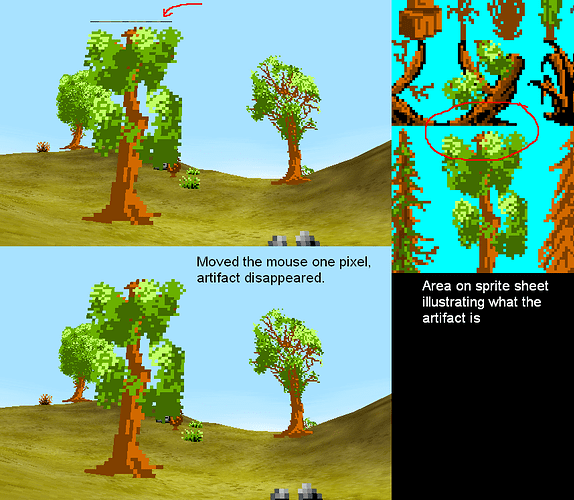
Yes, this can happen in any engine, not just Kraken, in both 2D and 3D.
Creating the Texture and Controller
Start by loading the spritesheet as a normal texture:
sheet = kn.Texture("assets/player_sheet.png")
At this point, the texture is still just an image. Animation behavior comes from the controller:
controller = kn.AnimationController()
controller.add_sheet(
    frame_width=32,
    frame_height=32,
    strips=[
        kn.SheetStrip("idle", frame_count=6, fps=6),
        kn.SheetStrip("walk", frame_count=6, fps=8),
        kn.SheetStrip("attack", frame_count=4, fps=8),
    ]
)
Here, each frame is 32x32, and each strip describes a row on the sheet. The controller does not split the image into separate textures. It only stores enough information to compute the active frame area.
Note:
The last strip in the list is the animation that will play if play(name) or set(name) is not explicitly called.
In the example above, "attack" would be the default animation.
Playing and Drawing Animations
Once the controller is set up, you can switch animations with:
controller.play("walk")
The controller handles timing automatically.
To draw the correct frame, assign the active frame area to the texture's clip_area property before rendering:
while kn.window.is_open():
    kn.event.poll()

    sheet.clip_area = controller.frame_area

    kn.renderer.clear()
    kn.renderer.draw(sheet)
    kn.renderer.present()
The important idea is that the controller decides which part of the atlas is active, and the renderer draws only that region.
Complete Example
import pykraken as kn

kn.window.create("Spritesheet Animation", 800, 450)

sheet = kn.Texture("assets/player_sheet.png")
player_xf = kn.Transform(pos=kn.Vec2(384, 208))

controller = kn.AnimationController()
controller.add_sheet(
    frame_width=32,
    frame_height=32,
    strips=[
        kn.SheetStrip("idle", frame_count=6, fps=6),
        kn.SheetStrip("walk", frame_count=6, fps=8),
        kn.SheetStrip("attack", frame_count=4, fps=8),
    ]
)

controller.play("idle")

while kn.window.is_open():
    kn.event.poll()

    if kn.input.is_pressed(kn.K_RIGHT) or kn.input.is_pressed(kn.K_LEFT):
        controller.set("walk")
    else:
        controller.set("idle")

    sheet.clip_area = controller.frame_area

    kn.renderer.clear()
    kn.renderer.draw(sheet, player_xf)
    kn.renderer.present()

kn.quit()
Using Animation With Game State
In real games, animation usually changes because game state changes. A player might use idle when standing still, walk when moving, jump while airborne, and attack during an attack.
A simple state-driven setup might look like this:
if attacking:
    controller.play("attack")
elif not on_floor:
    controller.play("jump")
elif velocity.x != 0:
    controller.set("walk")
else:
    controller.set("idle")
Here, play is useful for actions like attack or jump when you want the animation to restart from the first frame, while set is useful for looping states like idle and walk.
Further details and full API docs are available in the class references: